Layout & layers
There are no artboards and no layout engine to configure. Layout is three ideas — pins, stacks and containers — and the Layers list shows how they fit together.
Pins
- Every element is pinned to its parent: left, right, top, bottom, centre — or stretched between two edges. Pins decide what happens when the parent is resized.
- A tab bar pinned to the bottom stays at the bottom on a taller phone. A hero pinned to both sides stretches with the page. A logo pinned to the centre stays centred.
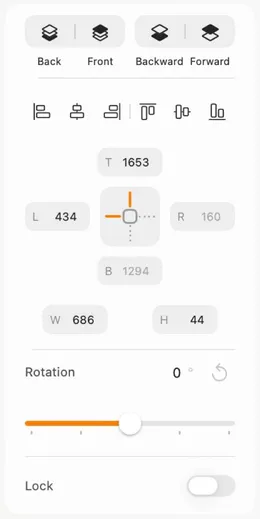
- Position, in the inspector, shows the pins as a small widget with a rotation field next to it. On iPhone it opens as a sheet from the menu.
Stack
- Select two or more siblings and press ⇧A (or Arrange › Stack). They get a container and share its width equally, table-style. Resize the container and the slots follow.
- ⌥⇧A, or Unstack, turns it back into plain elements.
- Made for tab bars, segmented controls, rows of cards, grids of icons.
Align and Tidy Up
- Align: with several elements selected, the menu and the inspector's Arrange section offer left, centre, right, top, middle and bottom.
- Tidy Up snaps a messy selection into a neat row or grid, using the median gap between them. Sizes are never touched.
Groups and containers
- ⌘G groups a selection into a container, ⌘⇧G ungroups it. Containers clip their children and can carry a fill, a stroke, rounded corners and a shadow of their own.
- Screens, cards and device frames are containers too — nesting is the whole model, and dragging in and out of them is how you move things between screens.
- Fit in Container stretches an element to its parent's size. Convert to Freeform Group turns a whole group into one editable shape.
Layers
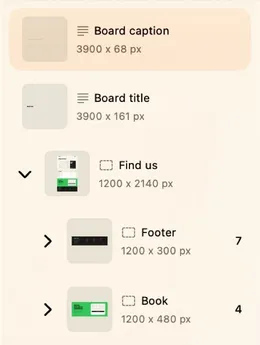
- The Layers tab lists everything on the board in stacking order, nested exactly like the board.
- Drag a row to reorder it; drop it onto another row to nest it there.
- Each row has an opacity toggle and slider, a padlock, and the same context menu as the board — including Rename.
- Bring to Front and Send to Back (⌘⇧] and ⌘⇧[), Forward and Backward, change the order without opening the panel.
A group can also take a custom outline: see Freeform & vectors.