Freeform & vectors
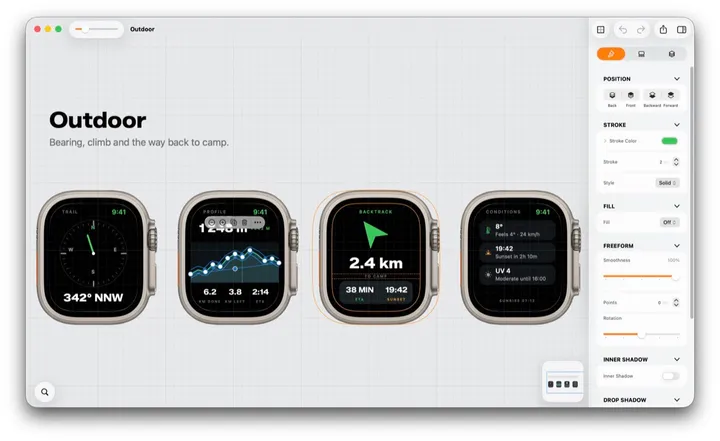
A freeform is a shape you own point by point. Anything can become one — a rectangle, a star, a word, a logo you only have as a PNG — and a freeform can hold other elements, so it doubles as a group with a custom outline.
What a freeform is
- Points and curves. Drag a point to move it; curve handles bend the segment. Add Point Here and Remove Point Here are in the menu, ⌘] and ⌘[ add or remove at the end.
- Smoothness, in the inspector, rounds the whole outline at once. Reduce Points thins a busy one.
- Everything a shape has, a freeform has: fill, gradient, stroke, dash, shadow, opacity, blur.
- Open or closed. Open Path turns the outline into a stroked path; Close Path makes it a shape again.
Six ways to make one
| From | How | You get |
|---|---|---|
| A shape | Edit › Convert to Freeform | The same rectangle, circle, star, badge or shield, as editable points. |
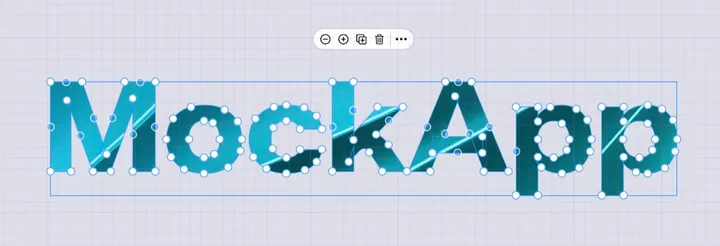
| Text | Edit › Convert to Freeform, up to 250 characters | Every letter as a path: a wordmark you can stretch, cut into, or fill with a gradient. |
| An image | Edit › Convert to Vector | The picture traced into paths, on the device. Best on logos, icons and flat artwork. |
| A drawing | Edit › Convert to Freeform | Your pencil strokes as vector shapes. |
| A line or path | Convert to Path, then Close Path | A line becomes a curve with points; closing it makes a shape. |
| From scratch | Path, in the Elements quick row | A path with a few points to drag where you want them; close it when it is done. |
A freeform is a group
- Drag elements into it the way you drag into any container — hold still over it — and they are clipped to its outline and move with it. A photo inside a blob, a screen inside an arch, a title inside a ribbon.
- Convert to Freeform Group takes a plain group and gives it four corner points; pull them into any silhouette and everything inside stays put and clipped.
- Merge Paths joins several freeforms or paths into one compound shape — a ring, a letter with a hole. Unmerge Freeform splits it again.
When to rasterize
A traced logo can carry a lot of points. Once it looks right, Rasterize turns it into a flat image that is cheap to move and copy around; keep a vector copy to the side if you might edit it again.