Elements
Everything you put on a board comes from one of four places: the creation bar, the Elements panel, Quick search, or your own photos and files. Drag a part onto a screen, or tap it to drop it into the selected container.
The creation bar
- Seven tools — Group, Rectangle, Circle, Text, Image, Draw and Path — in a bar at the bottom of the board on the Mac and iPad, and on the first page of the bottom bar on iPhone.
- Tap a tool to add it in the middle of the view, or drag it where you want it — onto a screen, into a card.
- Settings › Creation tools puts the bar at the bottom or on the left, or hides it; on iPhone it turns the page on or off. With a pointer, right-click the bar to move or hide it.
The Elements panel
⌘I on the Mac, the Elements tab of the inspector on iPad, the + button on iPhone.
- The quick row — Text, Media, Line, Path, Drawing and the Magic AI container, always at the top.
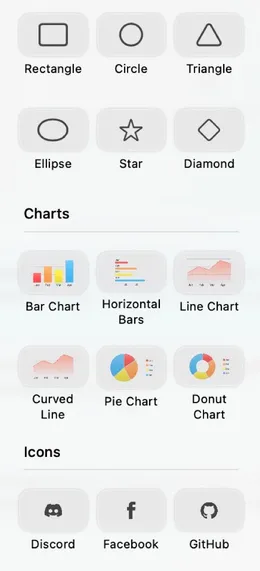
- Basic — shapes, charts, and the brand icons: Discord, GitHub, YouTube, WhatsApp and friends.
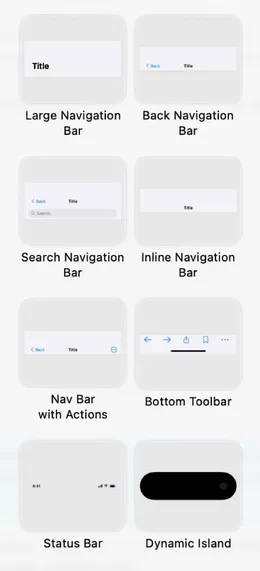
- Mobile, Tablet, Desktop, Watch, Web and Wireframe — more than three hundred platform parts: bars, cells, cards, sheets, keyboards, whole screens, drawn to look like the platform they come from. They come with Pro, with a few free to try.
- Saved — anything you Save Component comes back here, on every device. Settings › My Components renames and deletes them.
Quick search
The bubble in the bottom-left corner (⌘F) opens a Spotlight-style field. Type "tab bar" or "gear" and the matches appear as bubbles: basics, mockup parts, saved components, your photos and the whole SF Symbols catalog. Return takes the first match; with no match, the text you typed becomes a text element.
Device frames
A device frame is a plain container with a bezel drawn around it: iPhone and iPad in both orientations, Android phone and tablet, a laptop, a monitor, three watches. The frame is the screen — whatever you put inside is clipped to it, and the status bar and home indicator come with it. Realistic Frame in the inspector gives the bezel its material texture.
Text
- Real type: font, weight, size, tracking and line spacing, with light and dark colours.
- Style a part: select a word while editing and the inspector applies to just that word. ⌘B, ⌘U, and ⌘⇧= / ⌘⇧− for bigger and smaller.
- Convert to Freeform turns the letters into shapes you can edit point by point — a logo, an outlined headline.
- Correct, Rephrase, Elaborate, Summarize rewrite the text with AI, right from the menu.
Shapes, lines and paths
- Shapes: rectangle, circle, ellipse, triangle, star, diamond, pentagon, hexagon, octagon, badge, shield, bookmark — with a corner radius and corner smoothing where it makes sense.
- Lines have width, curve, smoothness and a dash style. Paths are lines with as many points as you like.
- Any of them becomes a freeform — a shape you edit point by point, and one that can hold other elements. That is its own page: Freeform & vectors.
Fills, strokes and effects
- Fill: a solid colour, a linear, radial or angular gradient, a mesh gradient, or a background blur that frosts whatever is behind it.
- Stroke: colour, width, and solid, dashed or dotted.
- Effects: opacity and blur, a drop shadow, an inner shadow.
Images and media
- Media opens your Photos, Files and the camera, your Library of everything you have used so far, the SF Symbols, and Generate with AI. Imported images are indexed on the device, so the search finds "beach" without a filename.
- In the inspector: Fit, Fill, Stretch or Tile, Crop, Flip, Rotate, Aspect ratio.
- Remove Background, Extract Text, Convert to Vector — all on-device, from the menu. Save Image As writes the file back out.
- Drop from anywhere. On iPad and Mac, drag a photo from Photos or Safari, an SVG or a PDF from Files straight onto the board: images land as photos, an SVG as editable vectors, a PDF as one image per page. ⌘V does the same with whatever is on the clipboard.
Drawings, charts and a live web page
- Drawing is PencilKit: pencil, pen, crayon, monoline, fountain pen and eraser, with Apple Pencil on iPad or a finger anywhere. Tap a selected drawing to keep drawing in it; Merge Drawings folds several into one.
- Charts: line, curved line, bar, horizontal bar, pie, donut. Double-tap one to edit its data.
- Live Web Page, in Web › Browser, is a real website inside your mockup: give it a URL in the inspector, and it shows as a snapshot on the board and comes alive — scrolling, clicking, even typing — when you edit it.