iPhone, iPad & Mac
One app, one file, three shapes. The board is the same everywhere; only the chrome around it changes.
iPhone
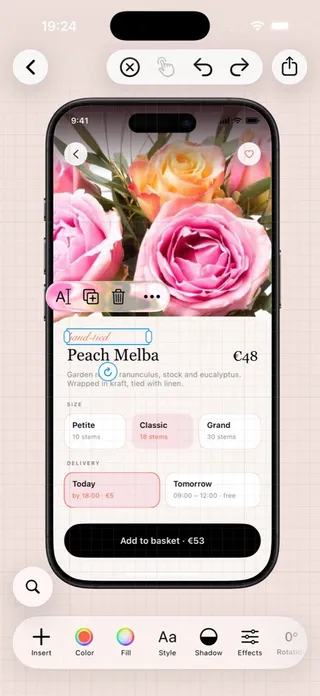
- The top bar: back, then ✕ to clear the selection or leave editing, the multi-select hand with its counter, undo, redo, and Export.
- The bar at the bottom holds the properties of whatever is selected; tap a cell to expand it. With nothing selected it shows the board's settings, and its first page holds the creation tools.
- + at the start of the bar opens Elements as a sheet. Quick search is the bubble above it.
- Pins open as a sheet from Position in the menu. Layers are in the bar too.
- Tips appear at the bottom the first time you open a board.
- iPhone Duo: the same layout, open or folded; the buttons move into the column beside the camera.
iPad
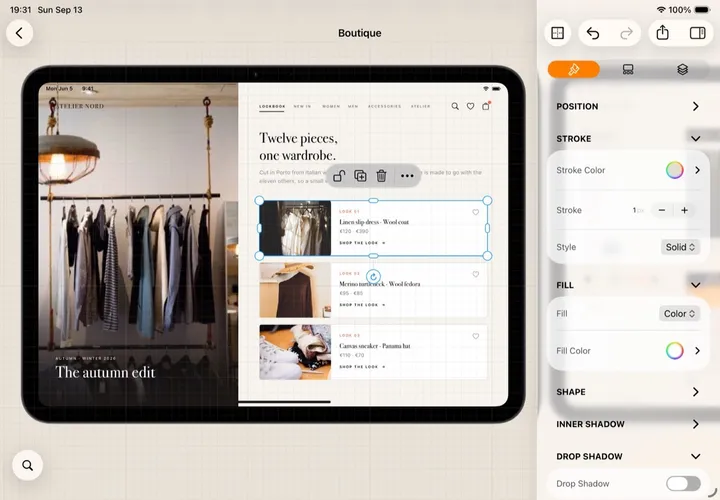
- The inspector on the right has three tabs: Design, Elements, Layers. It opens by itself in landscape; the sidebar button toggles it.
- The top bar: back, undo, redo, the board's name, export, and the inspector's tabs and sidebar button.
- The creation bar sits at the bottom of the board; Settings › Creation tools moves it to the left or hides it.
- Apple Pencil draws in a Drawing element and sketches inside a Magic AI container; without one, a finger does. Fingers keep selecting and panning either way.
- Trackpad and mouse: click and drag on empty space marquees, dragging an element moves it without selecting first, right-click or a two-finger tap opens the menu — exactly like the Mac.
- Keyboard: every Mac shortcut works, arrows included.
- Split View and Stage Manager: the editor keeps a minimum width, so it never collapses into the phone layout mid-edit.
Mac
- One window: a board opens in the window you are in, and the chevron takes you back to Recents. Open a second board while one is open — from the Finder, say — and it gets a window of its own, so two can sit side by side.
- Menus: File, Edit, View, Arrange, Insert, Format — everything on the board has a menu item, most with a shortcut.
- Inspector ⌘⇧2, Elements ⌘I, Quick search ⌘F, a new text ⌘T.
- Right-click anywhere for the context menu. Drag anything to move it, no selection needed. The creation bar sits at the bottom of the board.
- Trackpad: pinch to zoom, two-finger scroll to pan. Mouse: the wheel scrolls, ⌥ wheel zooms.