
Start here
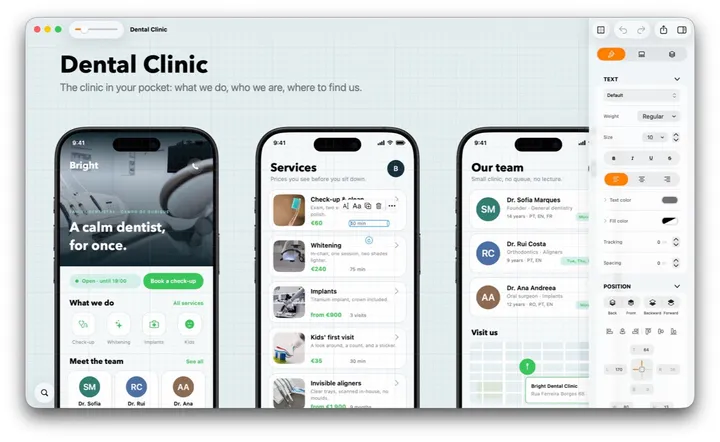
MockApp is a native design tool for Mac, iPad and iPhone. Everything happens on one infinite board: sketch a wireframe, build screens out of real UI parts, lay a flow side by side, export — or copy it straight into whatever app you were already writing in. This guide is a board too — every page of it was laid out in MockApp before it became a website.
The first five minutes
- Create a board. New Board asks for a category — Mobile, Foldable, Tablet, Desktop, Watch, Web or App Store — then a template or a blank board. Templates are small real products you can take apart; a blank board is exactly that. On the Mac it then asks where to save the file, like Pages.
- Tap to select. The first tap picks the whole screen or group under your finger. The next tap goes straight to what is under it, however deep. Double-tap a text and you are editing it. Long-press empty space and drag to select several.
- Add something. The basics — group, rectangle, circle, text, image, drawing, path — sit in the creation bar at the bottom of the board; on iPhone they are the first page of the bottom bar. For everything else open Elements — the + button on iPhone and iPad, ⌘I on the Mac — and drag a part onto a screen. Faster: Quick search, the bubble in the bottom-left corner (⌘F). Type "button", tap the match.
- Look around. Pinch to zoom and drag empty space to pan; on the Mac, scroll, and ⌥ scroll zooms with a mouse. The minimap in the corner shows where you are.
- Never save. Boards save themselves, and the ones in iCloud Drive sync to your other devices. Undo goes all the way back to when you opened the board — ⌘Z, or the arrow in the toolbar.
The cheat sheet
Same ideas, three devices. If you remember one table, make it this one.
| Action | Mac | iPad | iPhone |
|---|---|---|---|
| Select | Click | Tap | Tap |
| Reach what's inside | Click it again | Tap it again | Tap it again |
| Go up a level | Double-click | Double-tap | Double-tap |
| Select several | Drag on empty space | Long-press empty space, then drag · with a trackpad, just drag | Long-press empty space, then drag |
| Add or remove one | ⌘ click | ⌘ tap, with a keyboard | Hand button, then tap |
| Move | Drag — no need to select first | Select, then drag | Select, then drag |
| Duplicate | ⌥ drag ⌘ D | The small toolbar · ⌥ drag with a keyboard | The small toolbar |
| More actions | Right-click | Long-press and hold · two-finger tap on a trackpad | Long-press and hold |
| Edit text | Return, or double-click the text | Double-tap the text | Double-tap the text |
| Pan | Scroll ⌘ arrows | Drag empty space | Drag empty space |
| Zoom | ⌘ = ⌘ − ⌘ 0 | Pinch | Pinch |
| Deselect | Esc, or click empty space | Tap empty space | Tap empty space, or ✕ |
| Undo | ⌘ Z | ⌘ Z toolbar | Toolbar arrow |
| Redo | ⌘ ⇧ Z | ⌘ ⇧ Z toolbar | Toolbar arrow |
Where things live
Mac
Inspector on the right (⌘⇧2) with Design, Elements and Layers tabs. The creation bar at the bottom, Quick search bottom-left. Menus and shortcuts for everything else.
iPad
The same inspector, behind the sidebar button. Top bar: back, undo, redo, export. The creation bar at the bottom. Apple Pencil draws; a trackpad behaves like the Mac.
iPhone
Properties in the bar at the bottom, the creation tools on its first page, elements behind the + button. Top bar: clear selection, multi-select, undo, redo, export.
The rest of this guide
- Selecting & moving
- Elements
- Layout & layers
- The board
- iPhone, iPad & Mac
- Templates & import
- AI & sketch
- Freeform & vectors
- Export, Recents & sync
- Shortcuts, tips & Pro
Made in MockApp. All eleven pages of this guide were designed as one board in the app, then exported and built into this site — the same canvas, the same components you get. See what it does.